How to Reduce Screen Time on Your PC: 9 Methods
Built-in Windows settings and blockers that cut time on distracting sites · Updated
To reduce screen time on a PC, measure where your time goes, then set daily time limits and schedules on the distracting sites that take the most of it. Windows Focus, notifications turned off and grayscale help, and a lock keeps the limits from being switched off.
Key takeaways
- Windows has no screen time report for your own account, so measure with a screen time tracker first.
- On a work computer, cut time on distracting sites rather than total screen time.
- Limits that could not be overridden reduced time on social media, browsers and YouTube by 22 minutes a day in a randomised study of about 2,000 adults.
- Windows Focus silences notifications for a set time, and Do not disturb can turn on automatically at set hours.
- The 20-20-20 rule helps with eye strain: every 20 minutes, look at something 20 feet away for 20 seconds.
1. Measure your screen time first
Windows 11 has no screen time dashboard for an adult like the one on a phone. Battery usage in Settings shows battery use by app on a laptop, and Microsoft Family Safety reports only on family members for the organiser.
A screen time tracker records the apps and websites you use automatically. A week of data shows which sites take the most time and at which hours, which tells you what to limit. See the best screen time trackers for PC for free and paid options.
2. Set daily time limits on distracting sites
A daily time limit lets you use a site for a set number of minutes (for example 30 minutes of YouTube a day), then blocks it until the next day.
Limits you can dismiss with one click are easy to ignore. In a randomised study of about 2,000 adults, limits that could not be immediately overridden reduced time on social media, browsers and YouTube by 22 minutes a day over 12 weeks (Allcott, Gentzkow and Song, 2022).
How to do it: Microsoft Family Safety time limits are set by an organiser on a family member's account and do not apply to websites. For your own account, use a browser extension with a daily allowance, such as StayFocusd, or a blocker app with time limits.
3. Block distracting sites on a schedule
A schedule blocks sites during set hours, such as social media from 9 AM to 5 PM on weekdays or news and video sites after 10 PM. It removes the decision of whether to open a site during those hours.
How to do it: use an extension such as LeechBlock NG, which supports block sets with their own schedules, or a blocker app that applies the same schedule in every browser.
4. Use Focus sessions and a Pomodoro timer
A Focus session in Windows 11 turns on Do not disturb and turns off flashing and badges on taskbar apps for a set time.
- 1.Press Windows + N, or select the clock on the taskbar.
- 2.Choose how long the session lasts.
- 3.Select Focus.
To change what future sessions do, open Settings > System > Focus. A Pomodoro timer splits work into timed blocks with short breaks between them, which also gives you set points to stand up and look away from the screen.
5. Turn off notifications and schedule Do not disturb
Each notification is a prompt to switch to another app or site.
- 1.Open Settings > System > Notifications.
- 2.Under Notifications from apps and other senders, switch off apps you do not need alerts from.
- 3.Expand Turn on do not disturb automatically and set the hours, such as the evening.
To silence everything at once, open the notification center and select the bell icon with zZ.
6. Turn on grayscale
A screen without colour makes feeds and videos less appealing. In a one-week study of 84 people, grayscale reduced daily screen time on their phones by about 20 minutes (Dekker and Baumgartner, 2024).
- 1.Open Settings > Accessibility > Color filters.
- 2.Turn on Color filters and choose Grayscale.
- 3.Turn on Keyboard shortcut for color filters to switch it with Windows + Ctrl + C.
7. Schedule an automatic shutdown
A daily shutdown ends the evening's screen time at a fixed hour.
- 1.Open Task Scheduler and select Create Basic Task.
- 2.Name it, choose Daily and set the time.
- 3.Choose Start a program, enter shutdown as the program and /s /t 60 as the arguments.
- 4.Select Finish. Windows shuts down 60 seconds after the set time.
Limits: the task can be disabled in Task Scheduler in a few clicks.
8. Follow the 20-20-20 rule for your eyes
The American Academy of Ophthalmology recommends that every 20 minutes you look at an object at least 20 feet away for at least 20 seconds. It is meant to reduce eye strain during long computer sessions. The Academy also states that looking at screens for long periods does not permanently damage your eyes.
9. Measure first, then block what the data shows
Every free method above can be undone in a moment: extensions can be removed, and Focus, Do not disturb and scheduled tasks can be switched off. Ascension is built for the whole loop, from measuring to blocking.
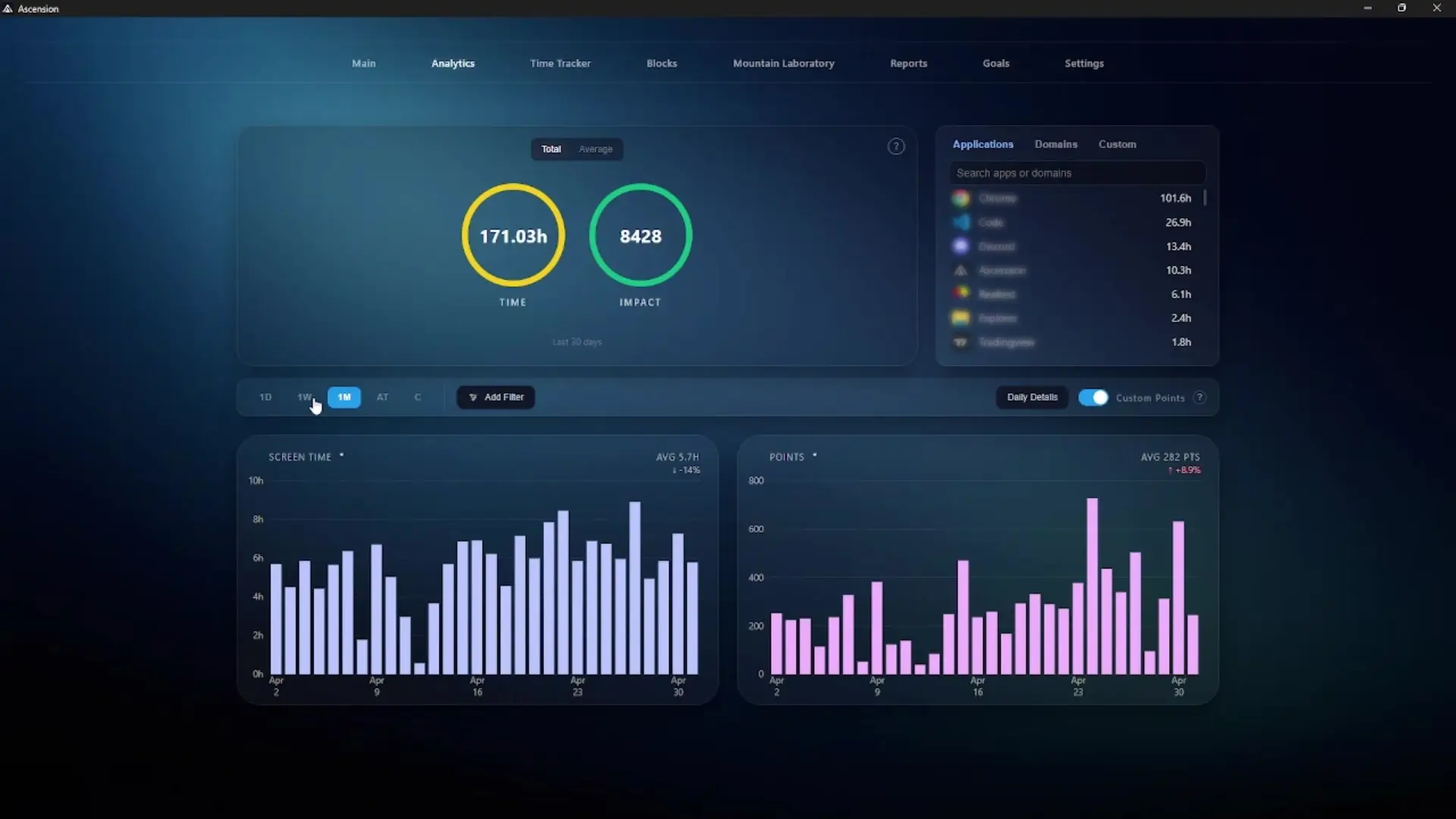
Ascension is a powerful Windows application designed to improve digital habits and productivity. It blocks distracting content on the web and tracks your digital usage automatically to give insights on how one can improve.
- 1.Collect the data. Ascension records your apps and websites in the background, so you do not start a timer or keep notes.
- 2.Look at the trends. Reports by hour, day, week or month show where the time actually goes, and the data is entirely private and never leaves your computer.
- 3.Test a change before you make it. Mountain Laboratory, Ascension's simulator, replays your real last 30 days as if a block had been active, so you can see how much time you would get back from cutting one site or capping another before you commit to anything.
- 4.Apply the block. Turn the change you tested into a block, always, on a schedule, after a daily time limit.
- 5.Make it stick. A block can be set so it cannot be edited, deleted or uninstalled until a date in the future you choose, which is what stops the change being undone on a bad evening.
Limits: Windows only (iOS and Mac in development).
Does less screen time make a difference?
The evidence that limits reduce time on distracting sites is strong. The evidence that less time on social media improves mood and wellbeing is more mixed: a 2025 review of 32 randomised trials found an improvement in wellbeing, but a small one. On a computer, the more direct result is time you get back for work or for being away from the screen.
Frequently asked questions
How do I reduce screen time on my PC?
Measure which apps and sites take your time, set daily time limits and schedules on the distracting ones, turn off notifications, and use Focus sessions. A blocker with a lock keeps the limits from being switched off.
What is the best way to reduce screen time?
Use a software that automatically tracks your screen time and can block content. You need both: the tracking shows you where the time actually goes, and the blocking stops the sites that take it. On Windows, Ascension does both, and a block can be set so it cannot be edited or removed until a date you choose.
Does Windows 11 have screen time limits?
Only through Microsoft Family Safety, where an organiser sets limits on a family member's account. Those limits do not apply to websites, and there is no screen time limit for your own account in Windows settings.
How can I see my screen time on Windows?
Windows has no screen time report for your own account. Battery usage in Settings shows battery use by app on a laptop. A screen time tracker shows time per app and website.
How much screen time is too much on a computer?
There is no single number for adults, and much computer time is work. A more useful measure is time on the sites you want to cut, compared with the limit you set for yourself.
Does grayscale reduce screen time?
In a one-week study of 84 people, grayscale reduced phone screen time by about 20 minutes a day. On Windows, turn it on in Settings > Accessibility > Color filters.
What is the 20-20-20 rule?
Every 20 minutes, look at an object at least 20 feet away for at least 20 seconds. The American Academy of Ophthalmology recommends it to reduce eye strain.
Available on Windows 10 & 11