How to Block Porn and Adult Websites on Your Computer (6 Methods)
Free and paid methods for Windows, from DNS filters to locked blockers · Verified
You can block porn on a computer with a family DNS filter, Google SafeSearch, Microsoft Family Safety, a browser extension, the hosts file or a dedicated blocker. Most built-in tools are designed for a parent managing a child's account, so an adult blocking for themselves usually needs a DNS filter or a blocker that is hard to switch off.
Key takeaways
- A family DNS filter is the best free method: it covers every browser and app on the device or network.
- SafeSearch filters Google results only: it does not stop a site typed in directly.
- Microsoft Family Safety is controlled by someone else: its settings are managed by a family organiser.
- Every free method can be reversed in minutes by anyone with administrator access.
- To block porn permanently, use a blocker that cannot be edited or removed.
Methods compared
| Method | What it covers | Cost | How easy to reverse | Best for |
|---|---|---|---|---|
| Family DNS filter | Every browser and app on the device or network | Free | One setting | A first layer for anyone |
| Google SafeSearch | Google search results | Free | One setting, unless a parent, school or network locks it | Search results only |
| Microsoft Family Safety | Edge on a family member's account | Free | Only the family organiser can change it | Parents |
| Browser extension | One browser | Free or paid | One click | Light friction |
| Hosts file | Sites you list yourself | Free | Edit the file | A few known sites |
| Ascension | Six browsers, unsupported browsers blocked | 15-day free trial, then $12.99/month or $99 one-time | Difficult | Hard-to-bypass |
1. Use a family DNS filter
A DNS filter blocks adult sites before they load by refusing to look up their addresses. Set it on your computer to cover that device, or on your router to cover every device on the network.
| Service | Preferred DNS | Alternate DNS |
|---|---|---|
| CleanBrowsing Family Filter | 185.228.168.168 | 185.228.169.168 |
| OpenDNS FamilyShield | 208.67.222.123 | 208.67.220.123 |
| Cloudflare for Families | 1.1.1.3 | 1.0.0.3 |
On Windows 11
- 1.Open Settings, then Network & internet.
- 2.Select Wi-Fi or Ethernet, then Hardware properties.
- 3.Next to DNS server assignment, select Edit, choose Manual and turn on IPv4.
- 4.Enter the preferred and alternate DNS addresses, then select Save.
On a router: open your router's admin page and replace its DNS servers with the addresses above. The menu differs by brand.
In Chrome: open Settings, Privacy and security, Security, and keep Use secure DNS on your current service provider or turn it off. Choosing a different provider there sends lookups past the filter.
Limits: anyone with administrator access can change the setting back, and a VPN or a different network is not filtered.
2. Turn on Google SafeSearch
SafeSearch has three settings. Filter blocks all explicit results, Blur blurs explicit images, and Off shows everything. Turn it on at google.com/safesearch or under SafeSearch in Google's search settings.
Limits: SafeSearch only works on Google Search. It does not block a website typed in directly, and an adult cannot lock it on their own account. Parents, schools and network administrators can lock it for others.
3. Use Microsoft Family Safety
Microsoft Family Safety includes Filter inappropriate websites and searches for members of a Microsoft family group. It filters in Microsoft Edge while the family member is signed in to their Microsoft account, and other browsers are blocked while the filter is on.
Limits: only the family organiser can change the settings, so it needs a second person to manage it. It is built mainly for parents.
4. Add a blocking extension to your browser
A blocking extension stops adult sites inside the browser it is installed in. Install it from your browser's extension store, then open the extension's details and turn on Allow in Incognito in Chrome or Allow in InPrivate in Edge, because extensions do not run in private windows otherwise.
Limits: it covers one browser, another browser is unaffected, and it can be removed from the extensions page in one click.
5. Edit the Windows hosts file
The hosts file sends a website's address nowhere, so the site cannot load in any browser.
- 1.Open Notepad as an administrator.
- 2.Open C:\Windows\System32\drivers\etc\hosts.
- 3.Add one line per site, for example 0.0.0.0 example.com and 0.0.0.0 www.example.com.
- 4.Save the file.
Limits: it only blocks the exact domains you list, new sites and mirrors are not covered, and it can be edited back in a minute.
6. Use a blocker that cannot be removed
A dedicated blocker combines ready made adult content lists with a lock that stops you from removing the block.
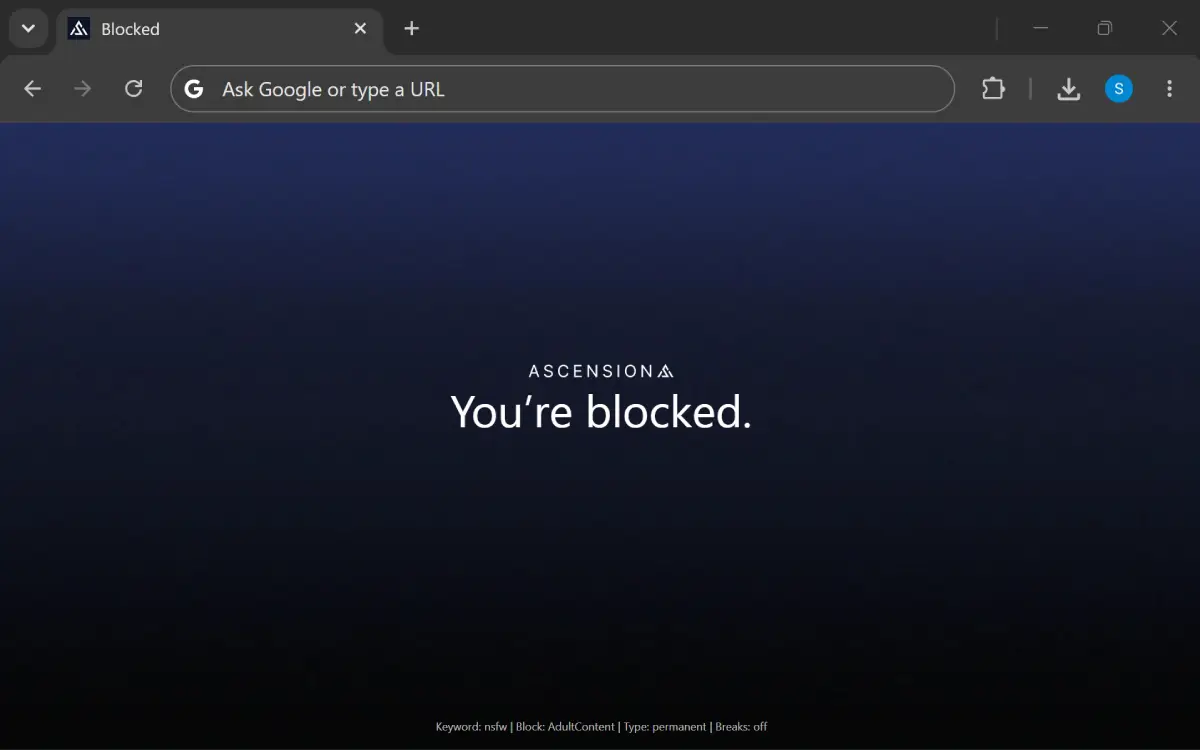
Ascension is a hard-to-bypass desktop application that blocks harmful and distracting content on the web. It is intended for people who struggle with addiction, and it tracks your digital usage automatically to give insights on how one can improve.
Price: 15-day free trial, then $12.99/month or $99 one-time. Windows 10/11 and Mac.
- 1.Install Ascension and add its browser extension to each browser it lists.
- 2.Load the premade Adult Content categories for domains and keywords.
- 3.Set the block to Always block.
- 4.Set the block so it cannot be edited or removed.
Key features
- Block variety: block whole sites, sections of a site, keywords and search terms, always or on a schedule, with daily time limits and entry delays for whole sites.
- Block tampering: a block cannot be edited or deleted.
- Uninstall protection: Ascension cannot be uninstalled while a block is locked.
- Extension tampering: removing or disabling the browser extension does not lift a block, and a browser running without it is closed while a block is active.
- Premade block lists: adult content, gambling and social media lists are ready to block in one step.
Limitations: No phone app yet, supports Windows and macOS.
For a closer look at the locks and what happens when you run the uninstaller, read the porn blocker that can't be uninstalled.
Which method should you use?
- For a child: Microsoft Family Safety for their account, plus a family DNS filter on the router so every device in the home is covered.
- For yourself: start with a family DNS filter. If you have already switched off softer tools in a weak moment, use a blocker that cannot be removed, which blocks permanently.
Frequently asked questions
Can I block porn on my computer for free?
Yes. A family DNS filter such as CleanBrowsing, OpenDNS FamilyShield or Cloudflare for Families blocks adult sites for free on a computer or a whole home network. SafeSearch and the hosts file are also free.
How do I block porn permanently?
Every free method can be reversed by the person who set it up. A blocker such as Ascension cannot be edited or removed while a lock is active.
Can Microsoft Family Safety block porn on my own account?
Only if someone else manages it. Family Safety filters are set by the family organiser for a member of the family group, and they work in Microsoft Edge. If you are the organiser yourself, you can switch the filter off at any time.
Does SafeSearch block porn websites?
No. SafeSearch filters explicit results in Google Search, but it does not stop a website typed directly into the address bar.
What is the best way to block porn on a computer?
On a computer, use Ascension if you need the block to hold. Extensions and settings are easy to remove, while a locked Ascension block cannot be edited or removed, and a browser running without its extension is closed while a block is active.
Available on Windows 10 & 11